Scanned Document to CSV Converter: How to Extract Tables From Statements, Invoices, and Receipts

Most `PDF to CSV` tutorials assume you are working with a clean, text-based PDF.
Real bookkeeping work is messier than that.
You get scanned bank statements from clients. You get photographed receipts. You get invoices exported from odd systems. You get documents that look readable to a human but turn into broken columns, lost rows, and wrong signs as soon as you run them through a generic extractor.
That is why a scanned document to CSV converter is a different category of tool from a simple table scraper.
Why scanned financial documents are harder than normal PDFs
A clean digital PDF already contains structured text. A scanned document does not. It is closer to an image than a spreadsheet.
That creates four common problems:
- OCR misses line items or merges multiple rows together.
- Debit and credit signs get flipped or dropped.
- Dates and descriptions lose alignment across pages.
- Totals may look correct while transaction-level detail is still wrong.
For accountants, that last problem is the dangerous one. A file can look "mostly right" and still be unusable for import or reconciliation.
Choose your workflow
Scanned bank statement to CSV
OCR scanned PDFs and images before import or reconciliation.
Bank statement to CSV converter
Start from the general statement-conversion workflow.
PDF to CSV converter
Use the broad PDF-to-CSV workflow for statement and document cleanup.
Bank statement conversion hub
The full cluster for PDF, CSV, OCR, and review-first statement workflows.
Import bank statements into QuickBooks Online
QBO upload path for PDF, image, QBO, QFX, and CSV statement files.
Coverage and resources
Open the authority pages that support this workflow.
Supported banks
See which institutions have dedicated coverage pages and where statement fallback still makes sense.
Open page →
Supported statement types
See which source documents Wesley can clean up before export or import prep.
Open page →
Bank Statement Cleanup SOP for Bookkeepers
A bank statement cleanup SOP for bookkeepers who need a repeatable review process before exporting to QuickBooks, Xero, QIF, or spreadsheet workflows.
Open page →
The documents people actually need to convert
The demand is not limited to bank statements.
Teams regularly need to convert:
- scanned bank statements
- scanned credit card statements
- vendor invoices
- photographed or exported receipts
- generic financial documents that still need row-level extraction
This matters because the output is not always going to the same place. Sometimes the next step is QuickBooks Online. Sometimes it is Xero. Sometimes it is QuickBooks Desktop. Sometimes it is just a clean generic CSV for review.
Why generic table extraction tools break accounting workflows
A generic extractor can be fine for light research or one-off admin work. It is much less useful when the CSV has to survive a real bookkeeping workflow.
What usually goes wrong:
- It dumps every visible table instead of the transaction rows you actually need.
- It adds extra columns that make imports harder.
- It loses merchant detail that you need later for categorization.
- It cannot tell whether a number is money in, money out, tax, subtotal, or balance.
- It works on one file, then fails when the next document has a slightly different layout.
That is why bookkeepers often end up doing manual cleanup after conversion. The extraction succeeded, but the workflow still failed.
What a good document to CSV converter should preserve
If you are converting scanned financial documents, the tool should preserve the fields that matter downstream:
- transaction date
- usable description or merchant detail
- correct signed amount
- payee, memo, category, or reference when available
- platform-ready columns for the accounting system you will import into next
If any of those pieces are unreliable, the CSV becomes another review project instead of a time saver.
Where Wesley fits
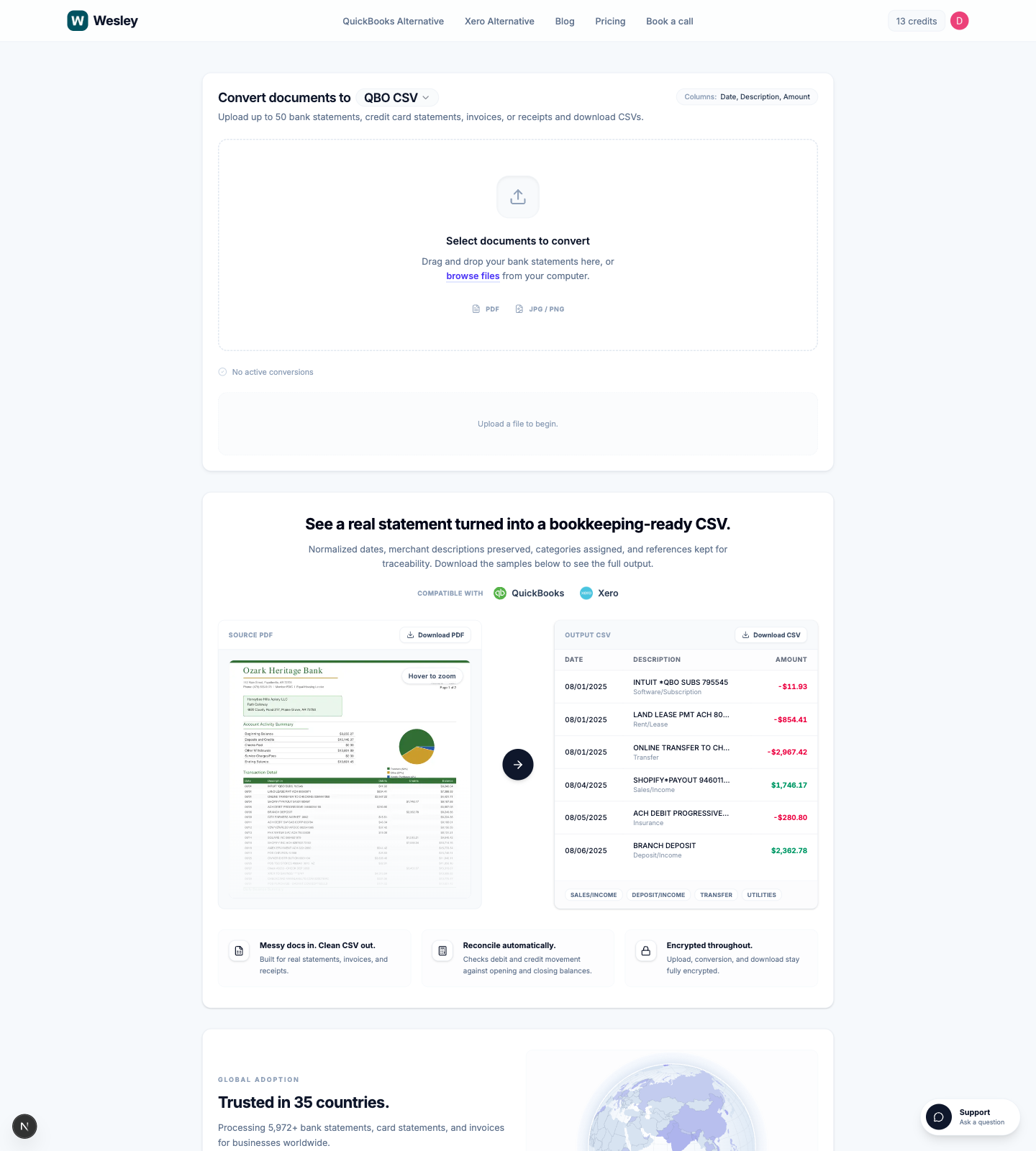 Wesley's document to CSV converter is designed for bookkeeping-ready outputs, not just raw text extraction.
You can upload up to 50 files at once and convert:
- bank statements
- credit card statements
- invoices
- receipts
Then you can choose the output format that matches the next step:
- QBO CSV
- QBD CSV
- Xero CSV
- Generic CSV
That matters when the document is messy but the import still needs to be clean.
What this helps with in practice
Historical cleanup
A client sends scanned monthly statements and wants the books caught up fast. You need structured rows, not another OCR cleanup project.
Accounts without a dependable feed
If the source account is unsupported or the feed is broken, the scanned statement becomes the source of truth. Converting it cleanly to CSV is how you keep moving.
For the bank-feed side of that problem, see our guide on why bank feeds still need CSV imports.
Invoice and receipt extraction
Not every document conversion job is a bank import. Sometimes you need a reliable CSV from invoices or receipts so your team can review, classify, or load the data elsewhere.
What to look for before choosing a converter
Look for a tool that can handle real bookkeeping constraints:
- OCR that works on scans and photos, not only native PDFs
- batch conversion for multiple documents
- destination-specific outputs for QuickBooks Online, QuickBooks Desktop, Xero, or generic review
- stable signed amounts and dates
- clean descriptions that remain useful after import
If the output still needs heavy spreadsheet surgery, the converter did not solve the real problem.
FAQ
Can you convert a scanned PDF to CSV?
Yes, but only if the tool handles OCR and keeps transaction rows intact. A scanned PDF is not the same thing as a text PDF, so the converter needs to reconstruct structure, not just copy text.
Can I extract tables from invoices and receipts to CSV too?
Yes. That is one of the most useful reasons to use a document to CSV converter, especially when your team needs structured review data instead of screenshots or attachments.
Can I batch convert documents to CSV?
You should. Batch conversion matters when you are processing monthly client files, cleanup work, or tax-season backlogs. Wesley supports up to 50 uploads at once.
Which CSV format should I choose?
Pick the format based on the next destination. Use QBO CSV for QuickBooks Online, Xero CSV for Xero statement workflows, QBD CSV for QuickBooks Desktop cleanup, and Generic CSV when you need a broader spreadsheet output.
Final takeaway
If your source files are scanned, photographed, inconsistent, or client-provided, generic PDF tools usually create more cleanup work than they remove.
A real document to CSV converter should take messy financial documents and produce a CSV that is actually useful in the next bookkeeping step.
If that is the workflow gap you are trying to close, try Wesley's document to CSV converter and move from scanned document to usable CSV without the manual reformatting.
Ready to use the matching workflow?
Scanned bank statement to CSV
OCR scanned PDFs and images before import or reconciliation.
Related reads
Discover adjacent articles without being sent to near-duplicate topics.

