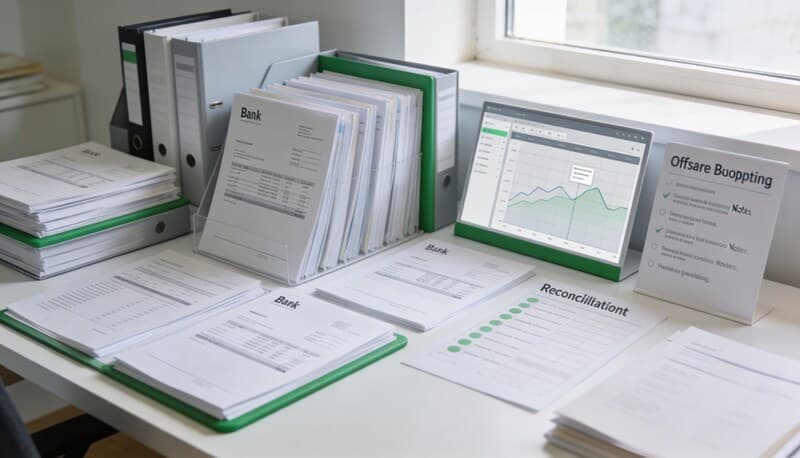
PDF Bank Statement Import Prep Checklist for QuickBooks Online
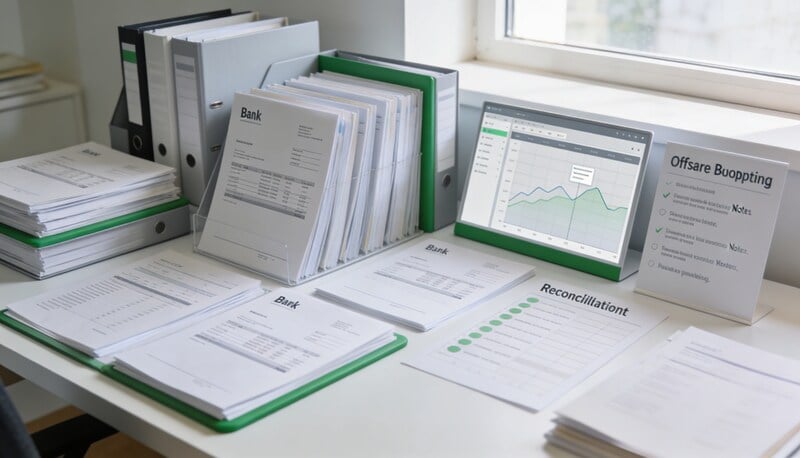
QuickBooks Online does not make a messy PDF statement magically import-ready. Before a PDF bank statement becomes a QBO import file, the team needs to validate the source, extract clean rows, choose the right columns, and review exceptions.
Quick answer
To prepare a PDF bank statement for QuickBooks Online, validate the statement period, convert the PDF to rows, normalize dates and amounts, remove duplicates, map descriptions, choose a QBO-friendly CSV format, and review the file before import.
Choose your workflow
Best QuickBooks statement import software
Category comparison for teams choosing a QuickBooks statement import tool.
Import bank statements into QuickBooks Online
Use a PDF-first workflow that ends in a QBO-ready CSV for QuickBooks Online.
Bank statement to QBO
Convert statement PDFs into a QBO-ready CSV.
Bank statement to CSV converter
Start from the general statement-conversion workflow.
PDF to CSV converter
Use the broad PDF-to-CSV workflow for statement and document cleanup.
Coverage and resources
Open the authority pages that support this workflow.
Supported banks
See which institutions have dedicated coverage pages and where statement fallback still makes sense.
Open page →
Supported statement types
See which source documents Wesley can clean up before export or import prep.
Open page →
Bank Statement Cleanup SOP for Bookkeepers
A bank statement cleanup SOP for bookkeepers who need a repeatable review process before exporting to QuickBooks, Xero, QIF, or spreadsheet workflows.
Open page →
QuickBooks Online Statement Import Prep
Use Wesley before QuickBooks Online when the source file is still a PDF statement, scanned statement, or messy CSV that needs review before import.
Open page →
Who this is for
This checklist is for bookkeepers and firms importing historical bank activity, cleaning up clients without bank feeds, or preparing statement data outside QBO before upload.
The operating problem
The mistake is treating conversion as the whole workflow. QBO import prep also needs sign control, date control, account context, and duplicate detection. Without that prep, the import creates cleanup work inside QBO.
The workflow
Prepare the file outside QBO first. Import only when the rows are clean enough to reconcile.
- Confirm the PDF belongs to the correct client, bank account, and period.
- Check that statement pages are complete.
- Convert the PDF into a structured table.
- Normalize date format and split money columns if needed.
- Check whether withdrawals and deposits have the correct sign.
- Remove rows already present from bank feeds or prior imports.
- Export the file in a QBO-friendly CSV format and review before upload.
Checklist
- Client and account are correct.
- Statement start and end dates are known.
- Opening and ending balances are visible.
- Dates are consistent.
- Amount signs match QBO import expectations.
- Descriptions are not truncated beyond usefulness.
- Duplicate rows are removed.
- The import account in QBO is selected intentionally.
What to document before handoff
- PDF source URL or filename.
- Converted row count.
- Excluded duplicate rows.
- Chosen QBO CSV column format.
- Rows needing reviewer attention.
- Expected reconciliation balance after import.
Review signals that matter
- Imported rows match statement activity.
- QBO does not reject the file for formatting issues.
- The reconciliation process surfaces fewer duplicate transactions.
- The reviewer understands what was excluded before import.
- Historical cleanup moves faster client by client.
Where Wesley fits
Wesley has workflows for bank statement to QBO, importing bank statements into QuickBooks, and PDF to CSV. Use it when the team needs to review statement rows before pushing them into QBO.
FAQ
Can QuickBooks Online import a bank statement PDF directly?
In most workflows, teams convert PDF statement activity into CSV or another supported import format before bringing it into QBO.
Should I import first and clean up later?
Usually no. It is easier to catch sign, duplicate, and date problems before the data lands in QBO.
What should I do with duplicate rows?
Identify whether they already came from a bank feed or prior import. Do not import duplicates simply because they appear in the PDF.
Ready to use the matching workflow?
Import bank statements into QuickBooks Online
Use a PDF-first workflow that ends in a QBO-ready CSV for QuickBooks Online.
Related reads
Discover adjacent articles without being sent to near-duplicate topics.